The task-based resources below will help get you up to speed with Space Manager. If you have specific questions, reach out to uwftech@uw.edu.
Navigating to a university site
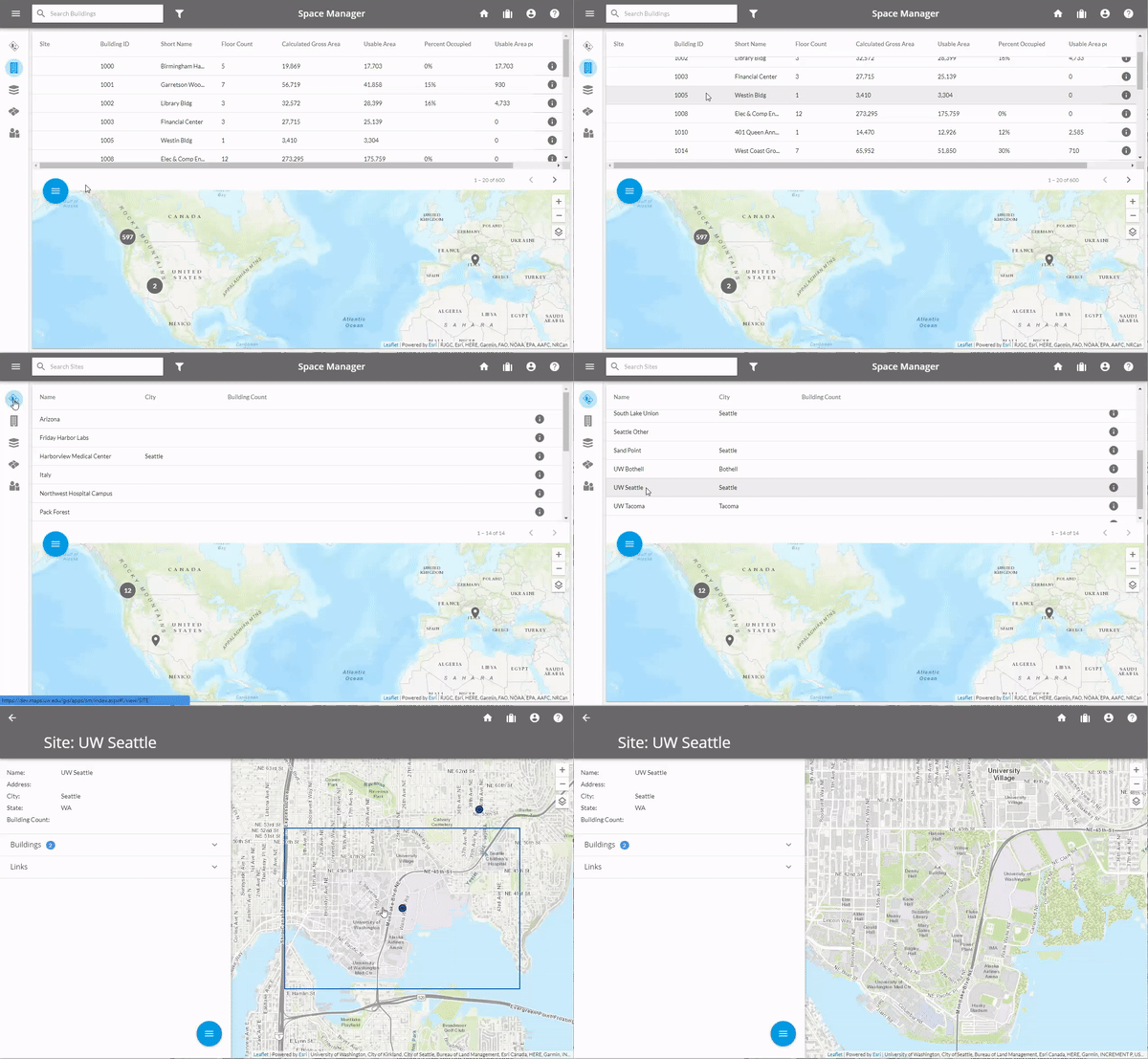
When Space Manager opens, the Building tab will be visible above the map window. Scroll through that list to view building information. Double-clicking on a building in the list will open the map viewer to that location. That will also display additional attribute data describing the selected building. It is also possible to zoom to a specific site, floor, space, or employee in the same manner.
To zoom to a site, select the Site tab on the left-hand navigation window. Scroll through the list and double-click on the desired campus. The map zooms to the location. Click Next to learn how to navigate the map.
Navigate the map
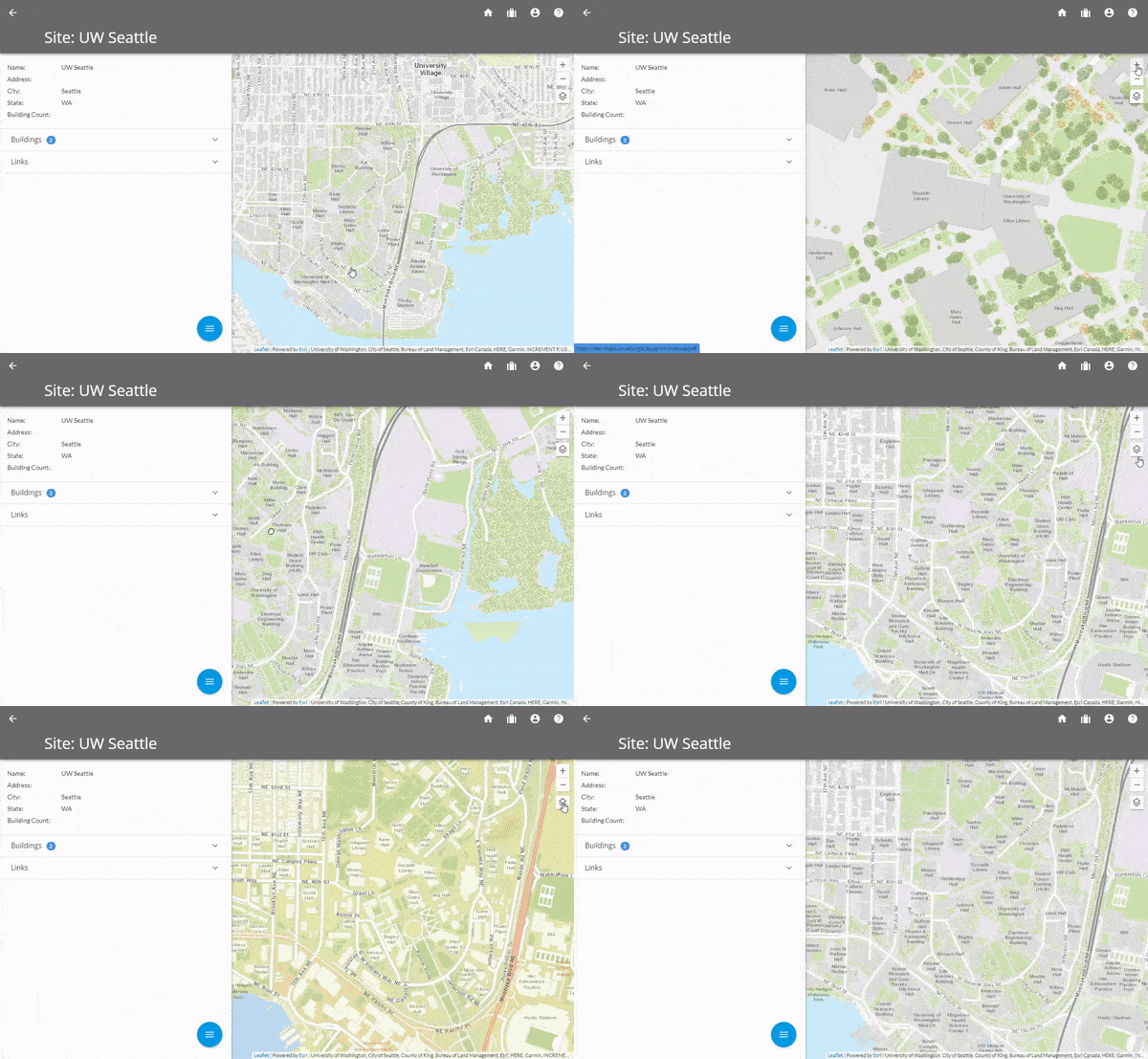
Map navigation in Space Manager is very similar to other mapping applications (e.g., Google Maps).
Zooming into and out of the map can be accomplished with the middle mouse wheel. Scrolling in with the wheel will zoom into the map while scrolling out zooms out. Another way to zoom in and out is with the plus and minus buttons in the map's upper right.
To pan (move side to side and up and down) in the map, use the left mouse button (right mouse button on a left-handed mouse) to click and hold anywhere on the map. With the button still depressed, move the mouse around to navigate the map.
To change the base map, use the icon underneath the minus button that looks like two pieces of paper stacked on top of each other.
Select and navigate to a building
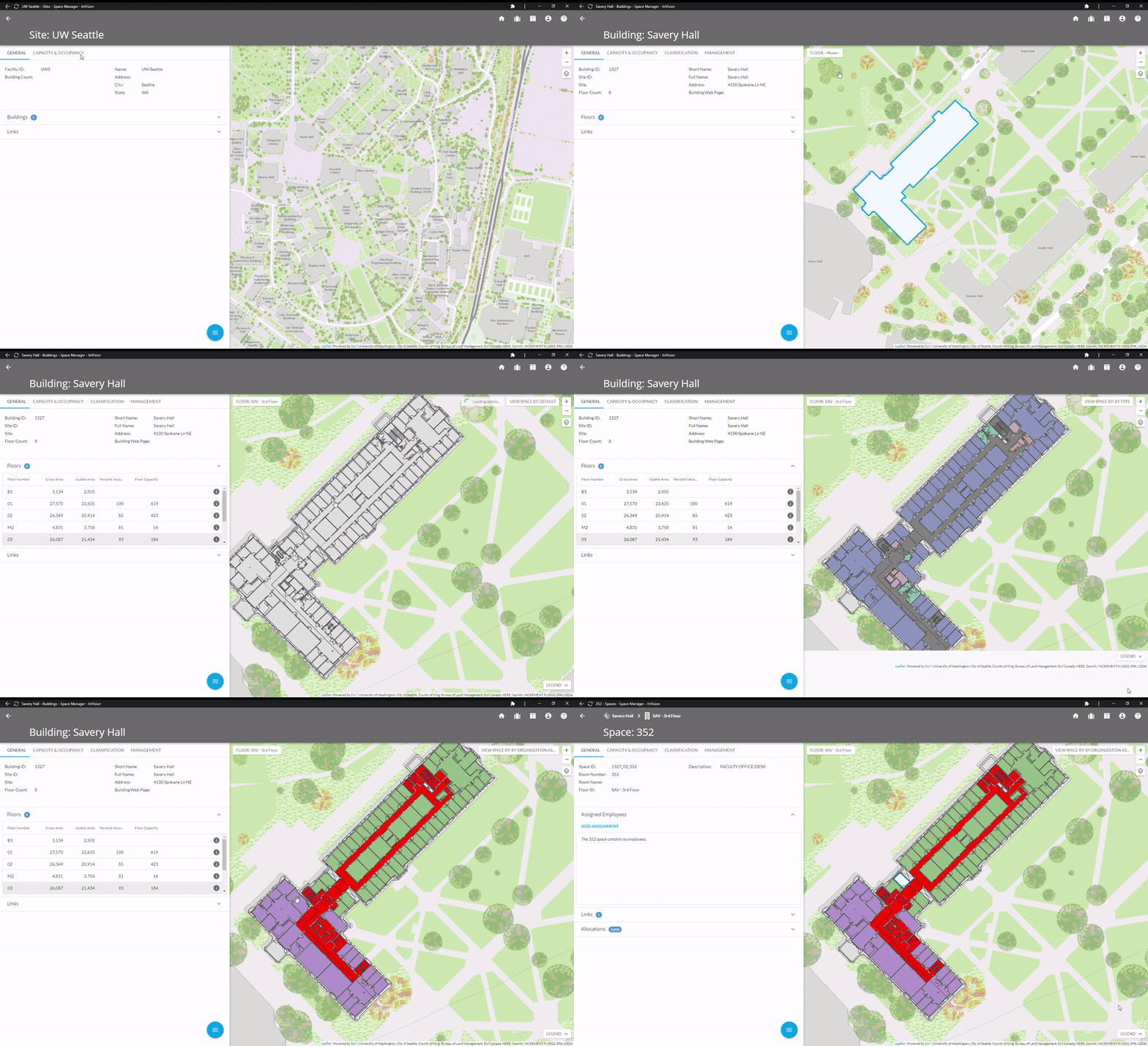
Locate a building on the map and then left-click the building shape to select it. Attribute data becomes available through the left-hand panel.
The Floor Selector in the upper left of the map window allows for a floor plan to be displayed on top of the map's building shape. Use that button to select a floor. With a floor visible, the View Space By button in the upper right of the map can then be used to color-code rooms in a variety of ways.
From this window, a room can be selected. Selecting a room displays its attribute data. Data can be edited through the pencil icon found in the action menu (gold circle with three white lines).
Select and navigate a building - details
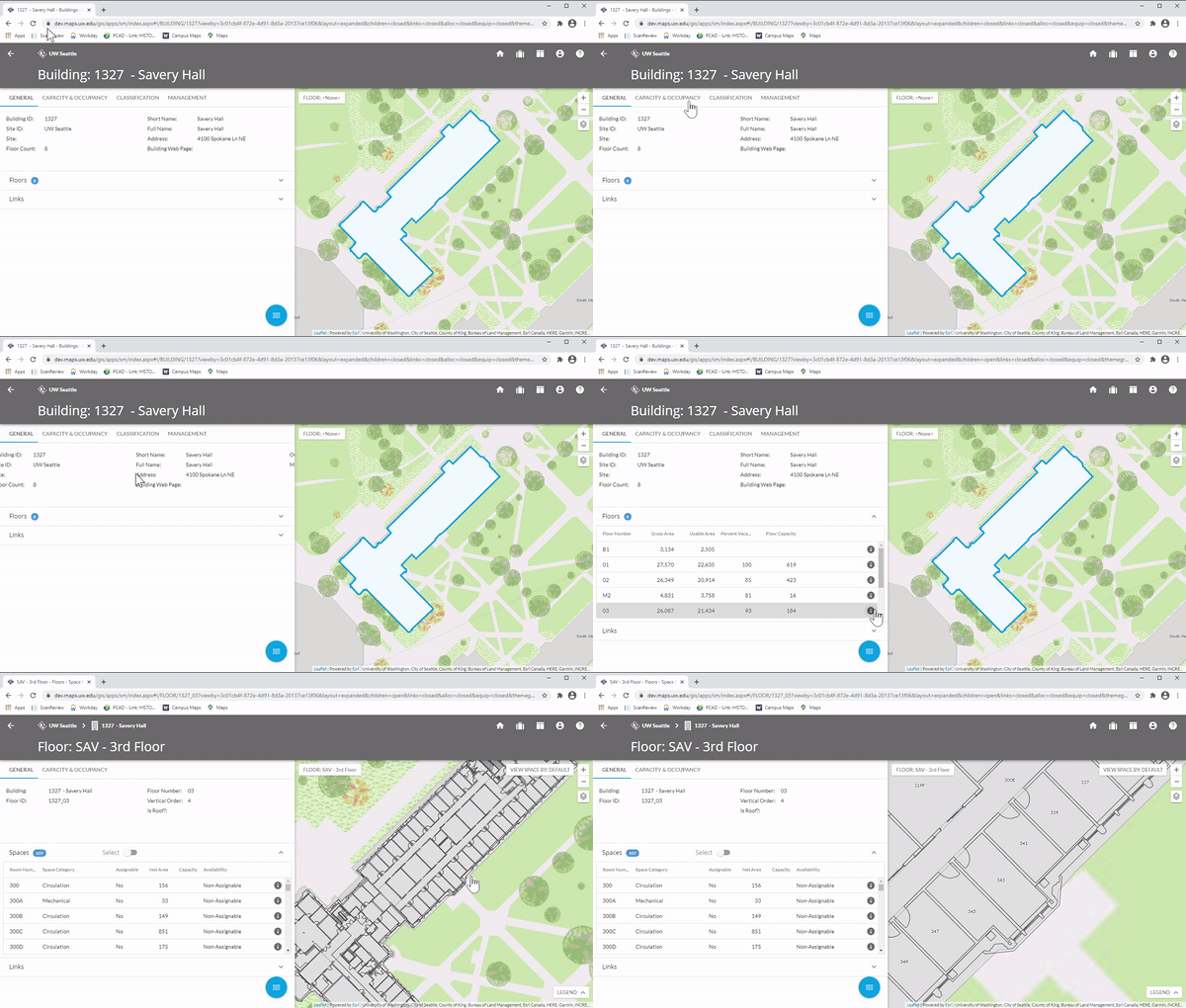
The Details window on the left includes tabs for General, Capacity & Occupancy, Classification, and Management.
Individual floors can be viewed by clicking on the arrow on the Floors section in the Detail view. Floors also note the number of floors (including the roof) in a blue dot. Choosing the desired floor and then zooming in can help to resolve room numbers and other details.
Floors can also be moved easily using the FLOOR menu in the Map view. This will work at any time, even when an individual room is selected.
Select a room
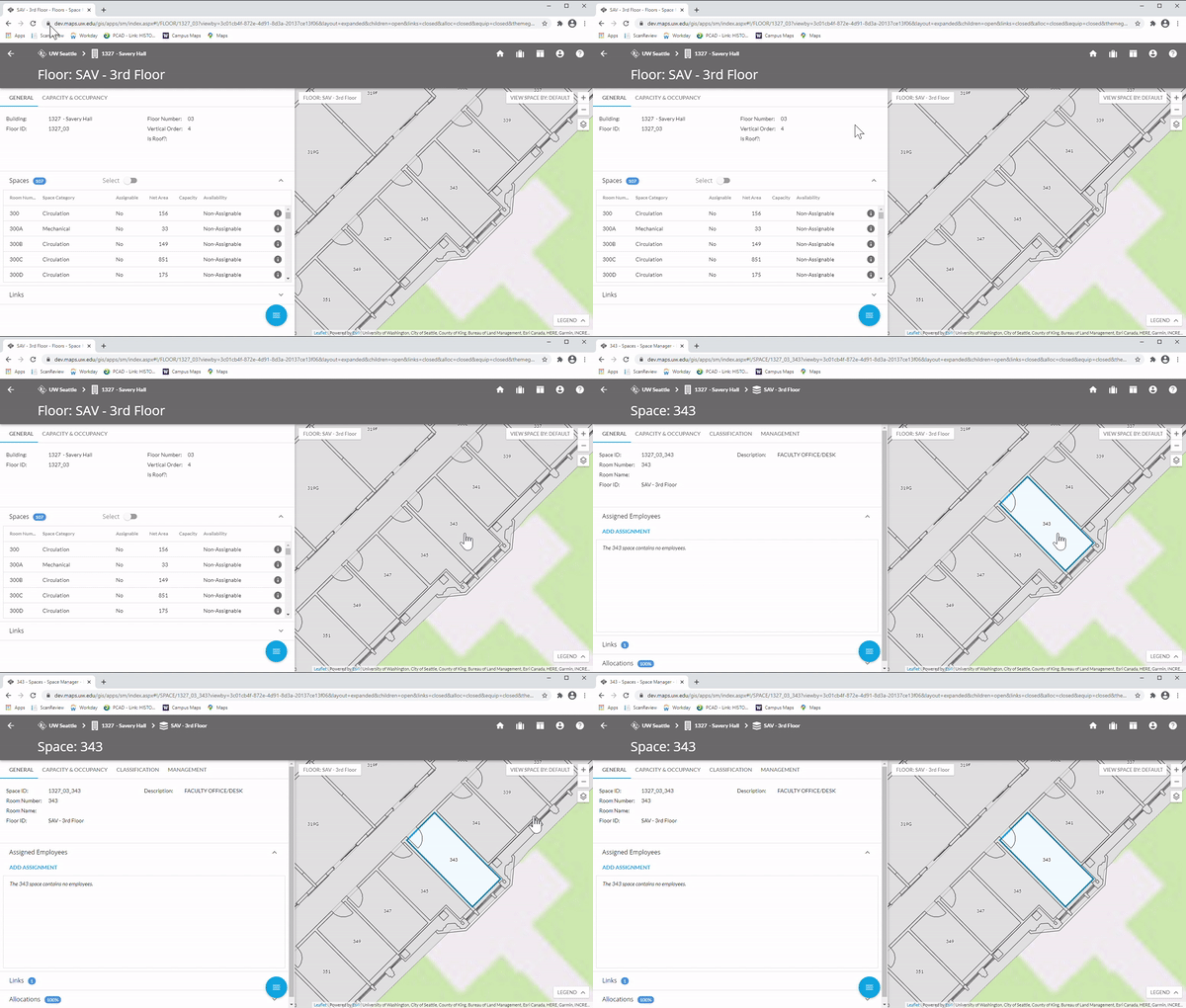
Once a floor is displayed in the Map view, rooms may be selected from a list of rooms in the Details view or simply clicked on in the Map view. This will expand the number of options tabs at the top of the Details view.
Change a room’s classification
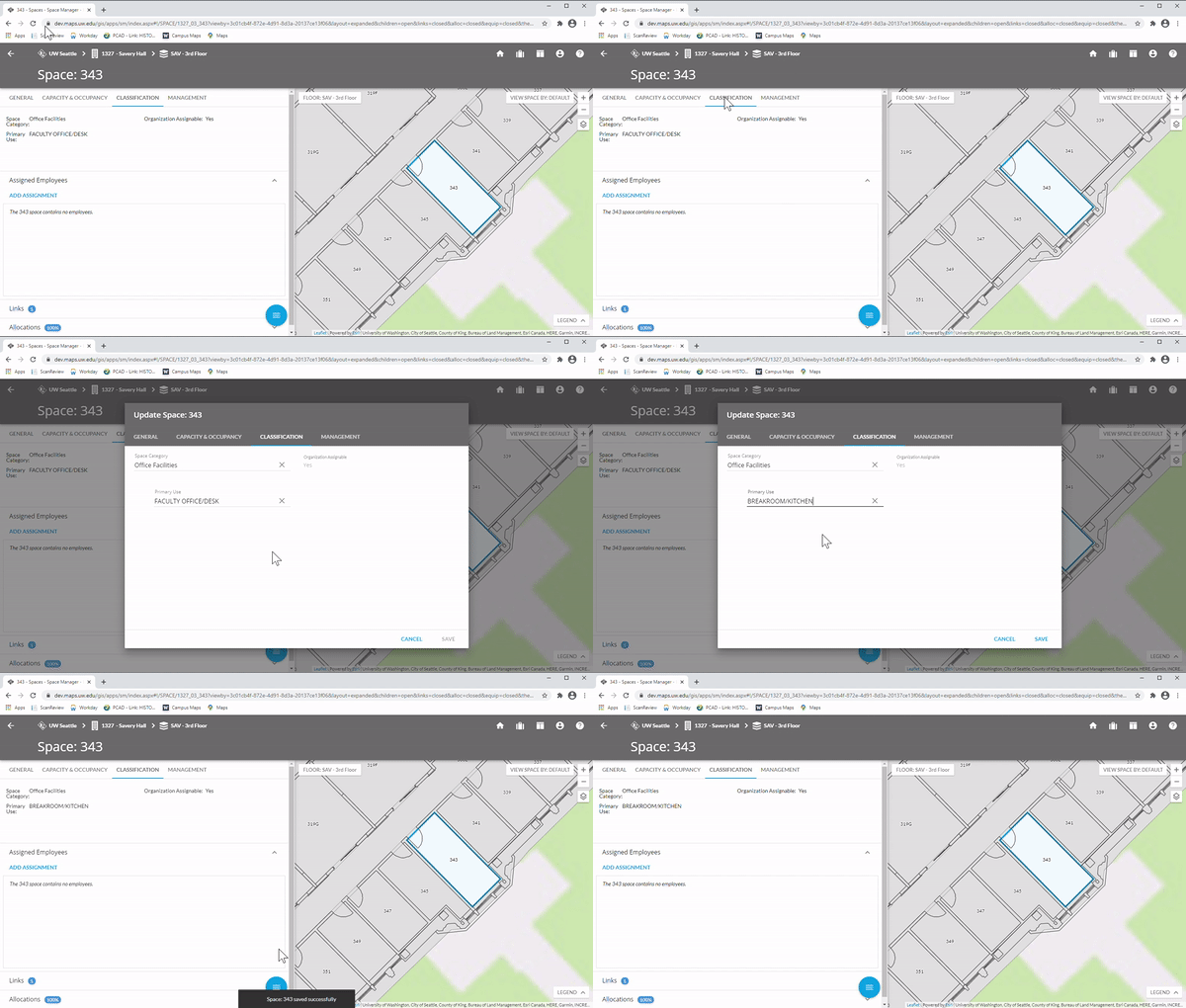
Selecting a Room allows the user to add or alter many items of information concerning a room.
Selecting the Classifications tab in the details view on the left allows the user to change the room's usage designation. Clicking on the blue Actions circle and selecting the Edit pencil, an edit box appears.
The user may now edit Space Category and Primary Use. Clear the current Primary Use by clicking on the "x" and then choose a new Primary Use from the dropdown menu or typing it in.
If that Primary Use is not available, Space Category will have to be changed first; it is changed in the same way.
Click Save, and the new information in Primary Use or Space Category will now display in the Classification tab.
Change a room’s capacity
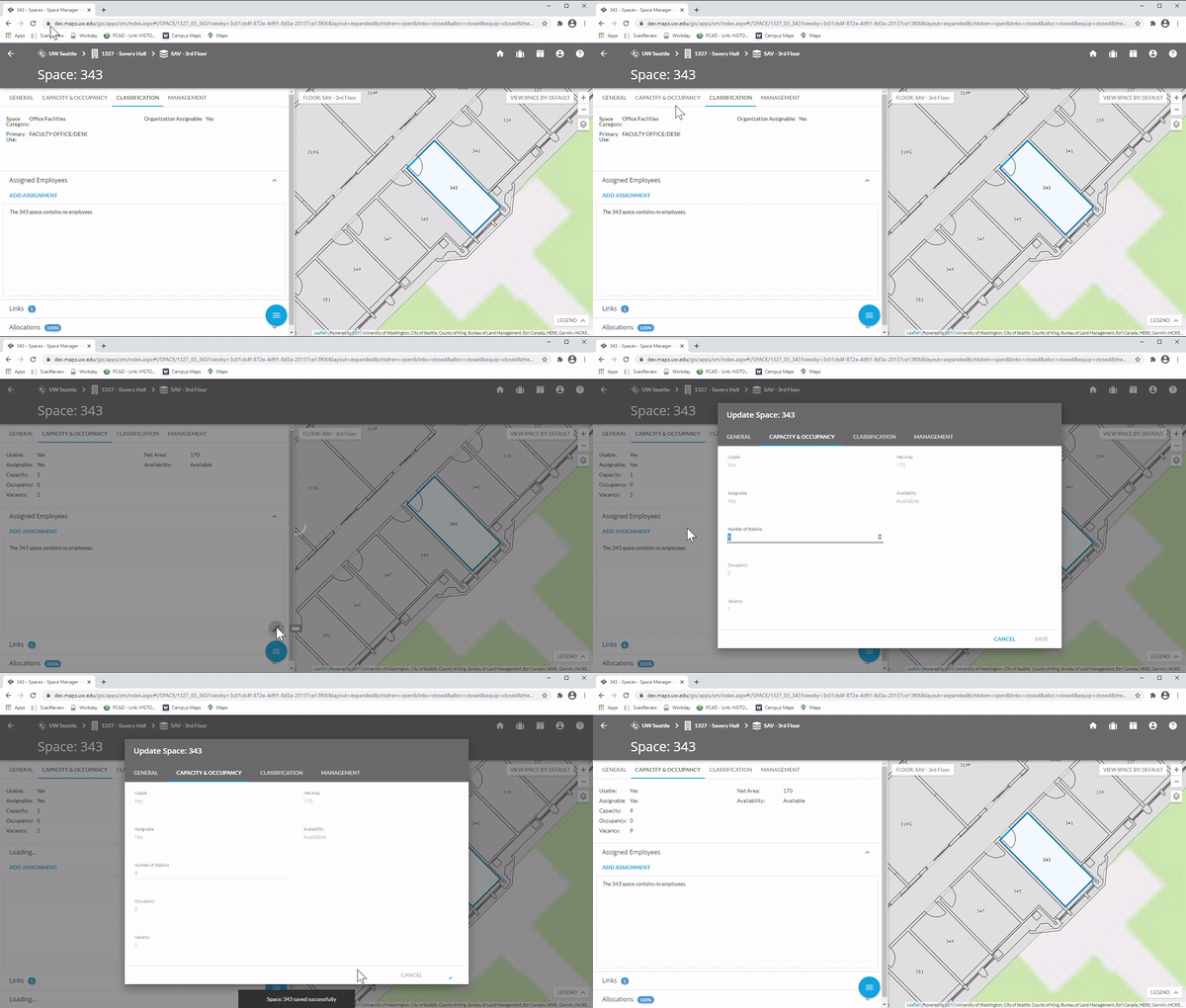
Space Manager also allows the user to change designated room capacity.
Selecting Capacity & Occupancy in the Details pane shows current capacity information. Provided the room selected is assigned an organization code matching the user's security permissions, the user may open up an edit window using the Action menu's Edit pencil icon.
In the edit window, Number of Stations will determine occupancy. Change this to the desired number, and then click Save.
The new room capacity appears in the detail pane.
Change the organization assignment
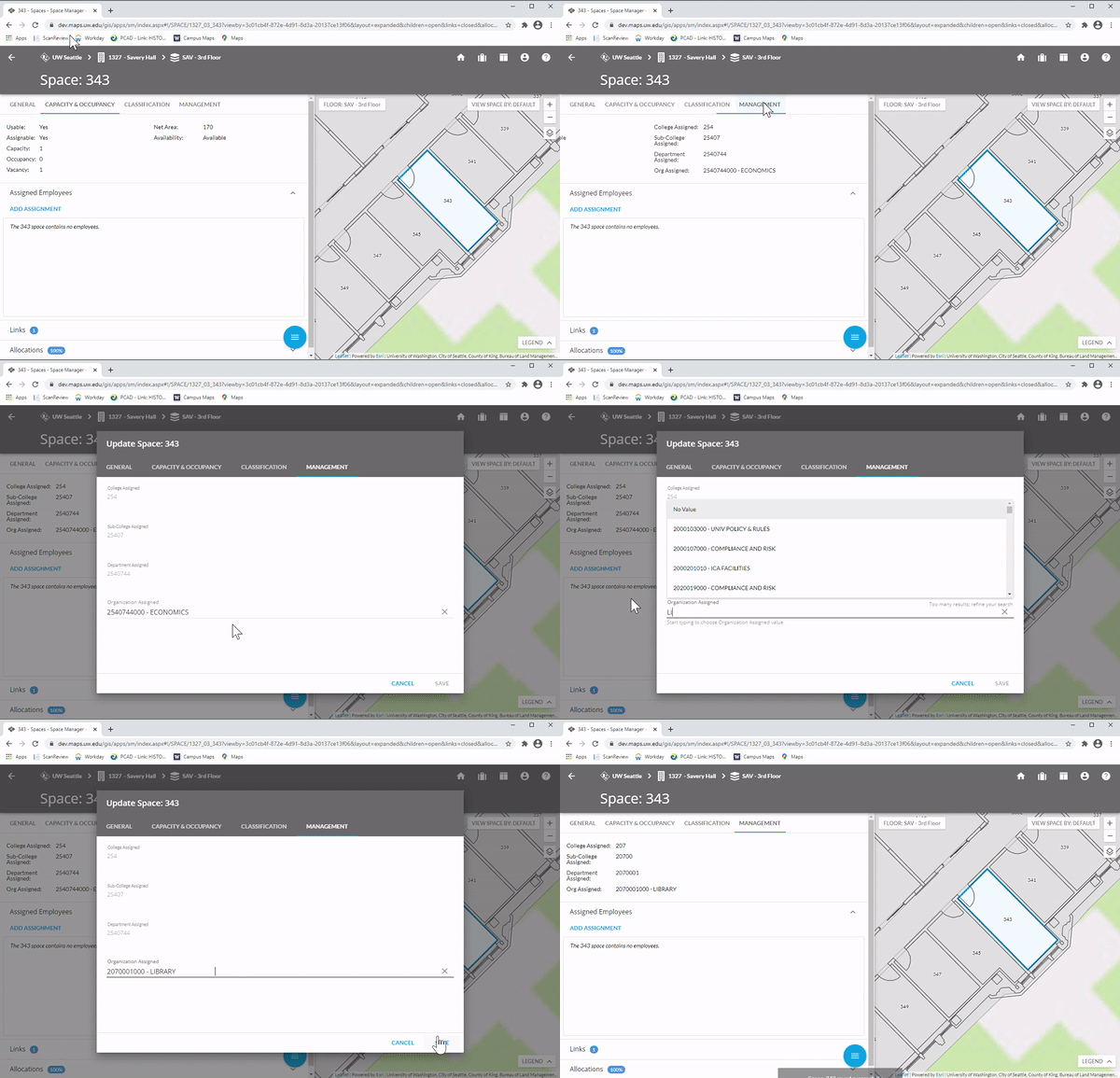
Under the Management tab in the Detail pane, the user can change and assign the university organization code the room is associated with.
After clicking on the Management tab, the user can click on the Action menu's Edit pencil icon to create an edit window.
Here, if the user has the proper security permissions, Organizations can be assigned, using either name, number, or dropdown menu.
It is important to note that the organizations possible in this field are governed by the College, Sub-College, and Department fields. If they are changed, different organizations will be available.
Changes to any of these fields will not display until after this window is Saved. Then the changes populate to the Detail pane.
Add employees
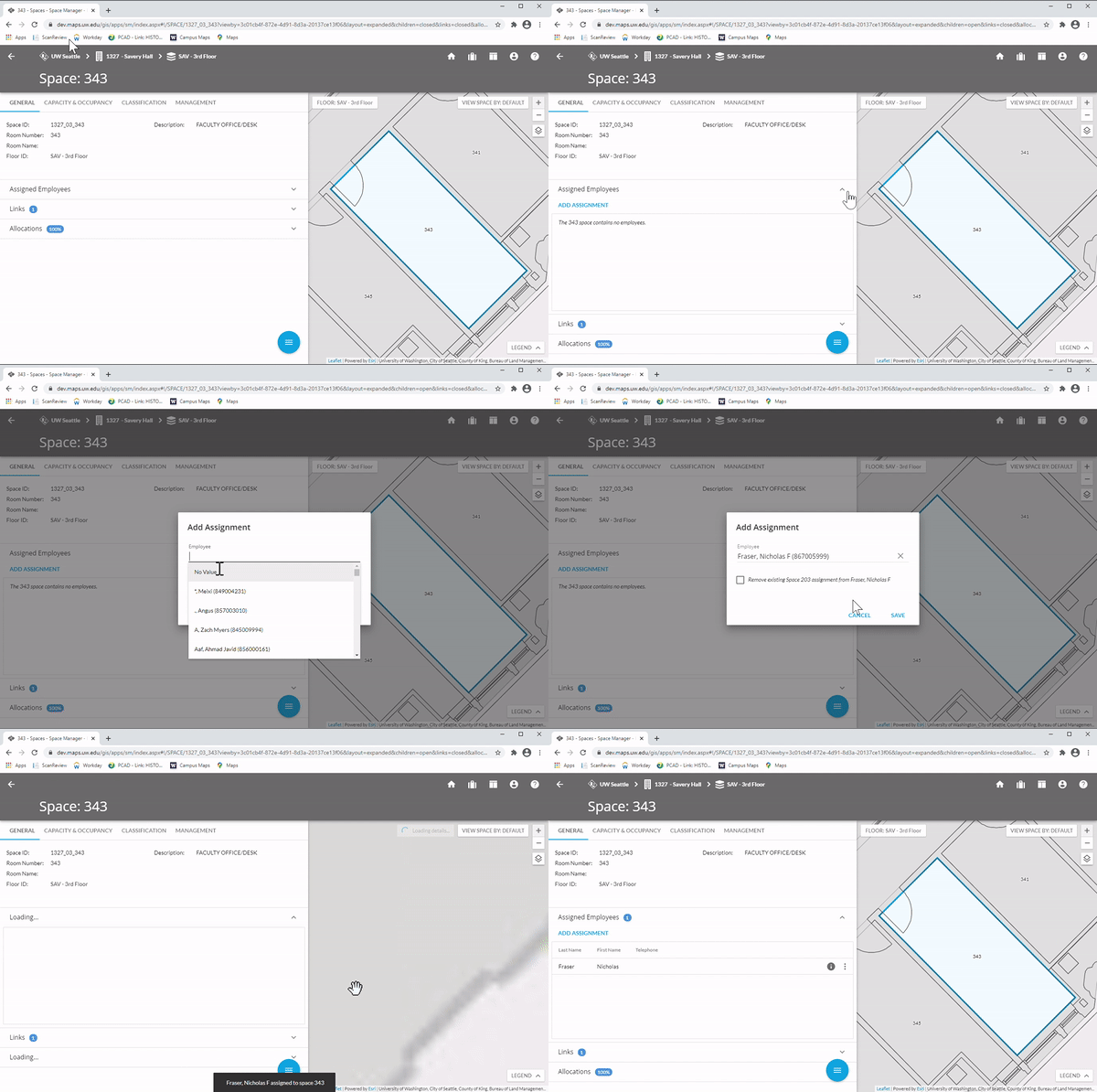
In the Details pane, click on the Assigned Employees menu.
Click on Add Assignment. This will generate an edit window that allows the user to add an employee using either name or employee number.
Saving populates the change to the Details window.
Remove employees
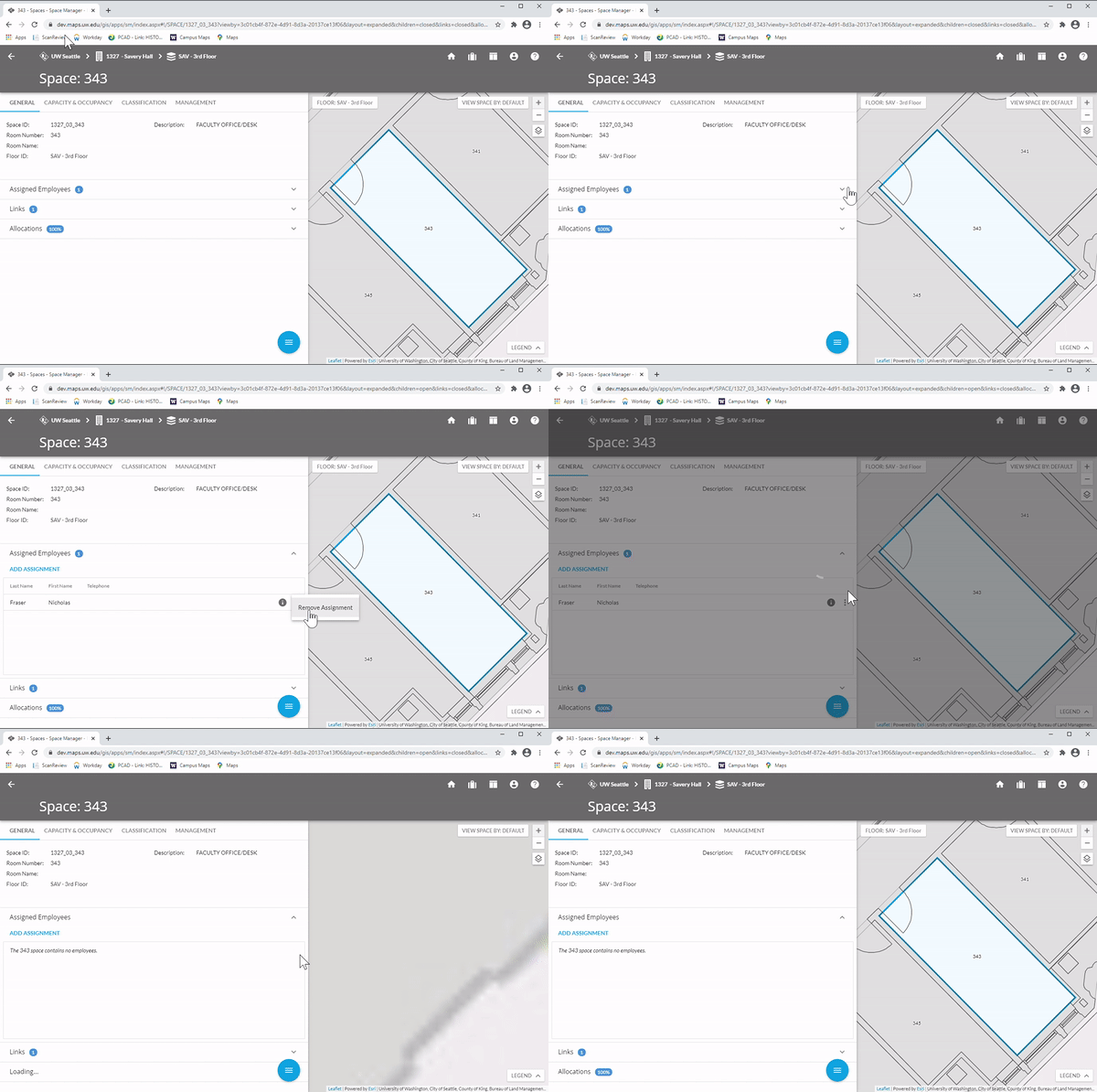
To remove an employee, simply open the Assigned Employees menu again, click on the vertical ellipsis for the employee, and click on "Remove Assignment."
Add an allocation
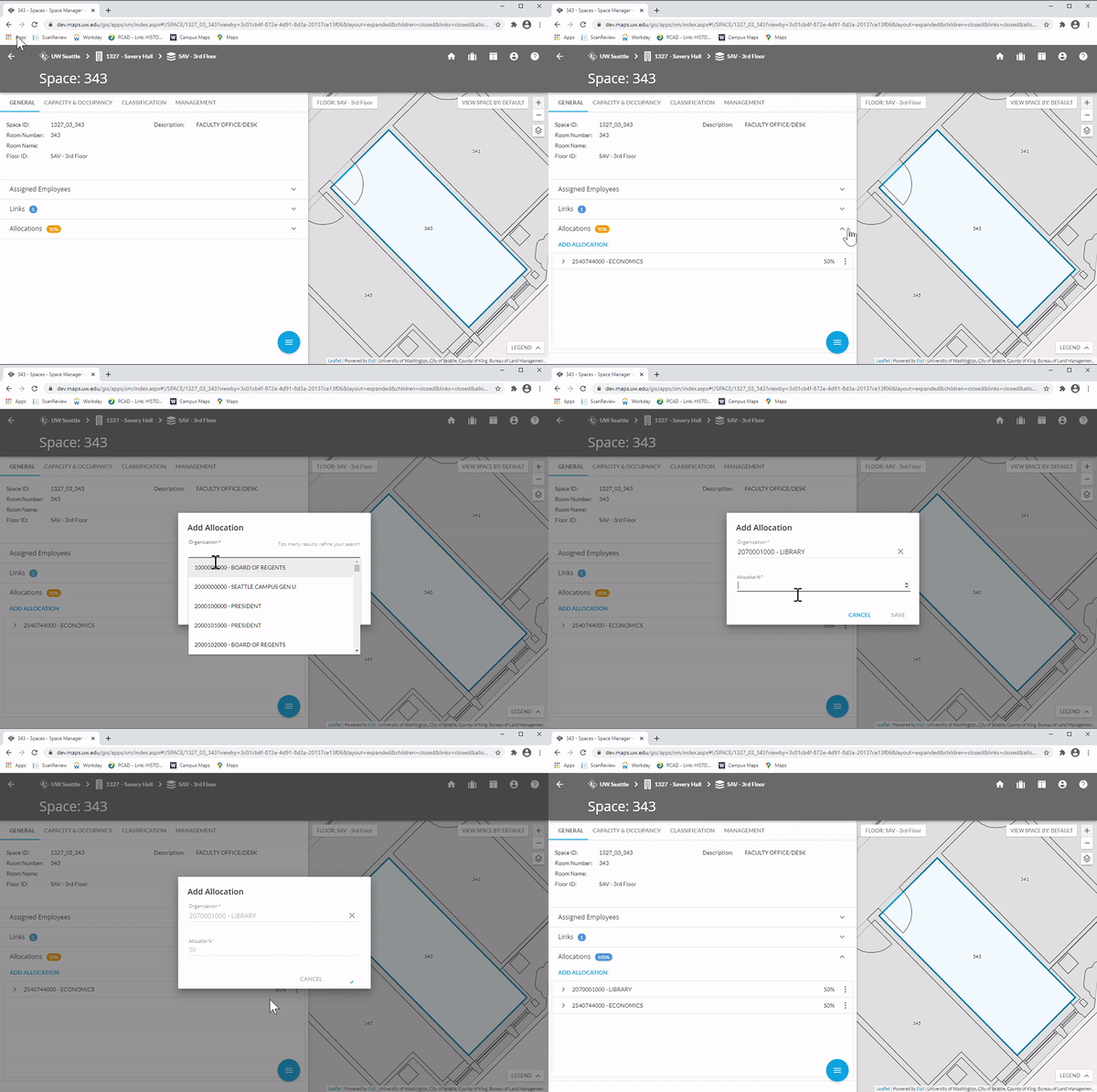
In the Details pane, expand the Allocations menu, and click on "Add Allocation"
Add an allocation by adding an Organization and an Allocation percentage, and click Save.
Remember that any total percentages more or less than 100% will appear in gold, rather than the blue of 100%.
Add a functional use
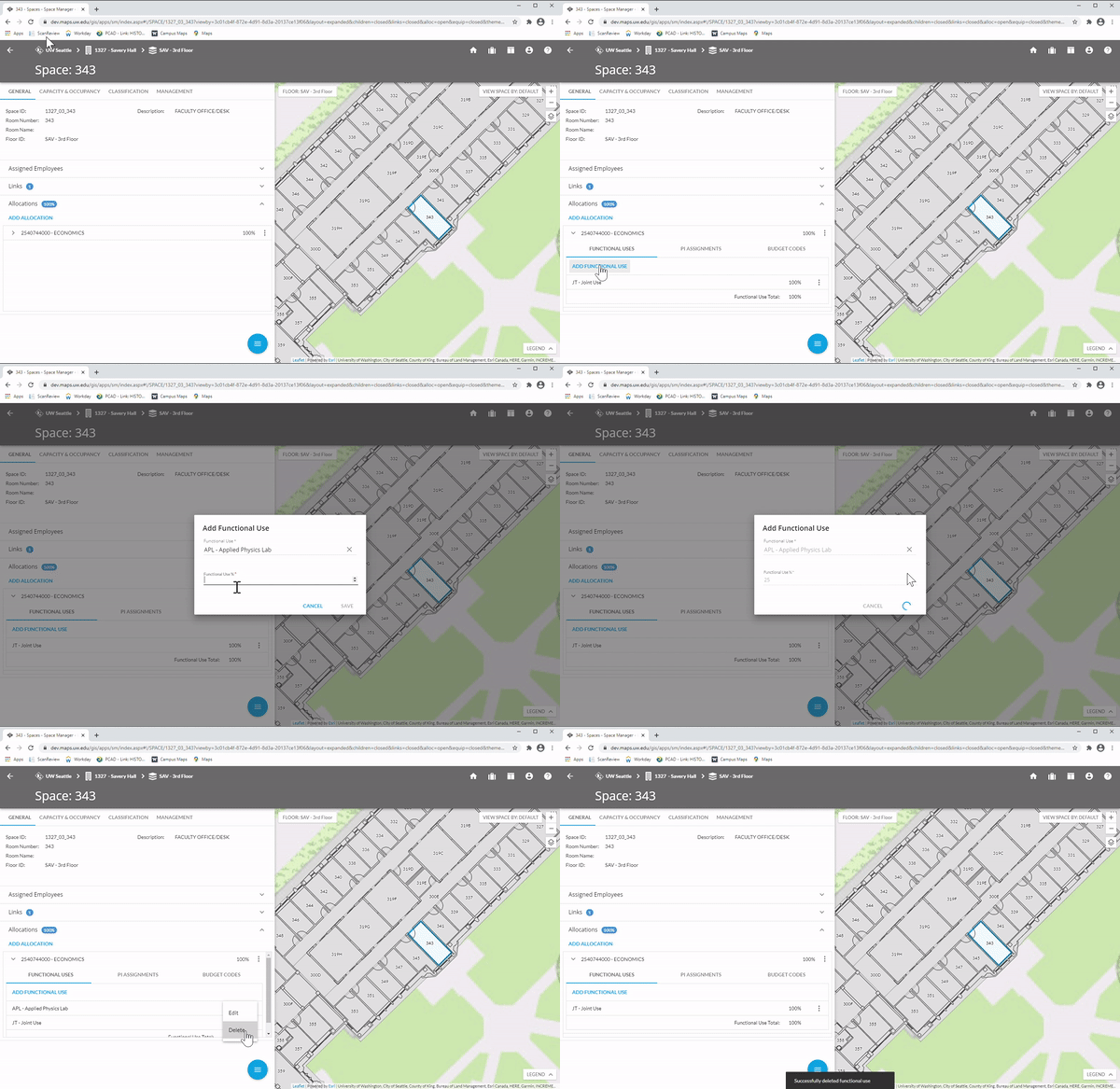
Occasionally it will be necessary to change the Functional Use of a room.
Open the Add Allocation function under Allocations.
Choose an Allocation, and click on Functional Use, which opens an edit window.
Functional Use works much like Allocations; the user chooses a Functional Use from a dropdown menu and assigns a Functional Use percentage.
Add a principal investigator
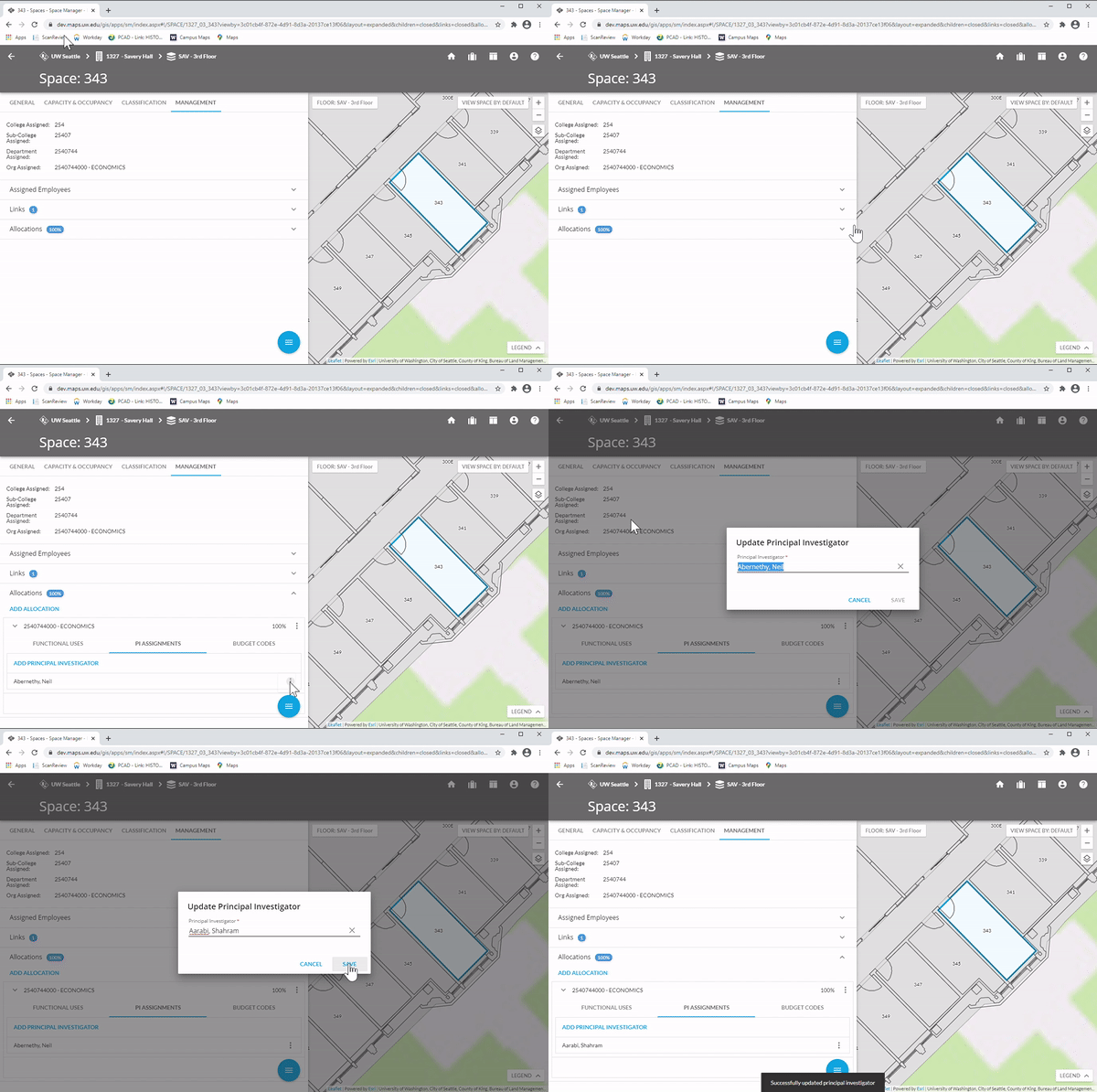
The user may also assign a Principal Investigator to a selected room.
Under the Management tab in the Detail pane, expand the Allocations menu below using the triangle to the right. Click on the organization listed under Add Allocation.
Select PI Assignments, which will display Add Principal Investigator, and click on either Add Principal Investigator (if none present) or the vertical ellipsis of the PI to the right.
This will create an Add Principal Investigator window. From here, the user may add, change, or delete a Principal Investigator. Saving and closing the edit window will populate changes to the Details pane.
Change the principal investigator percent
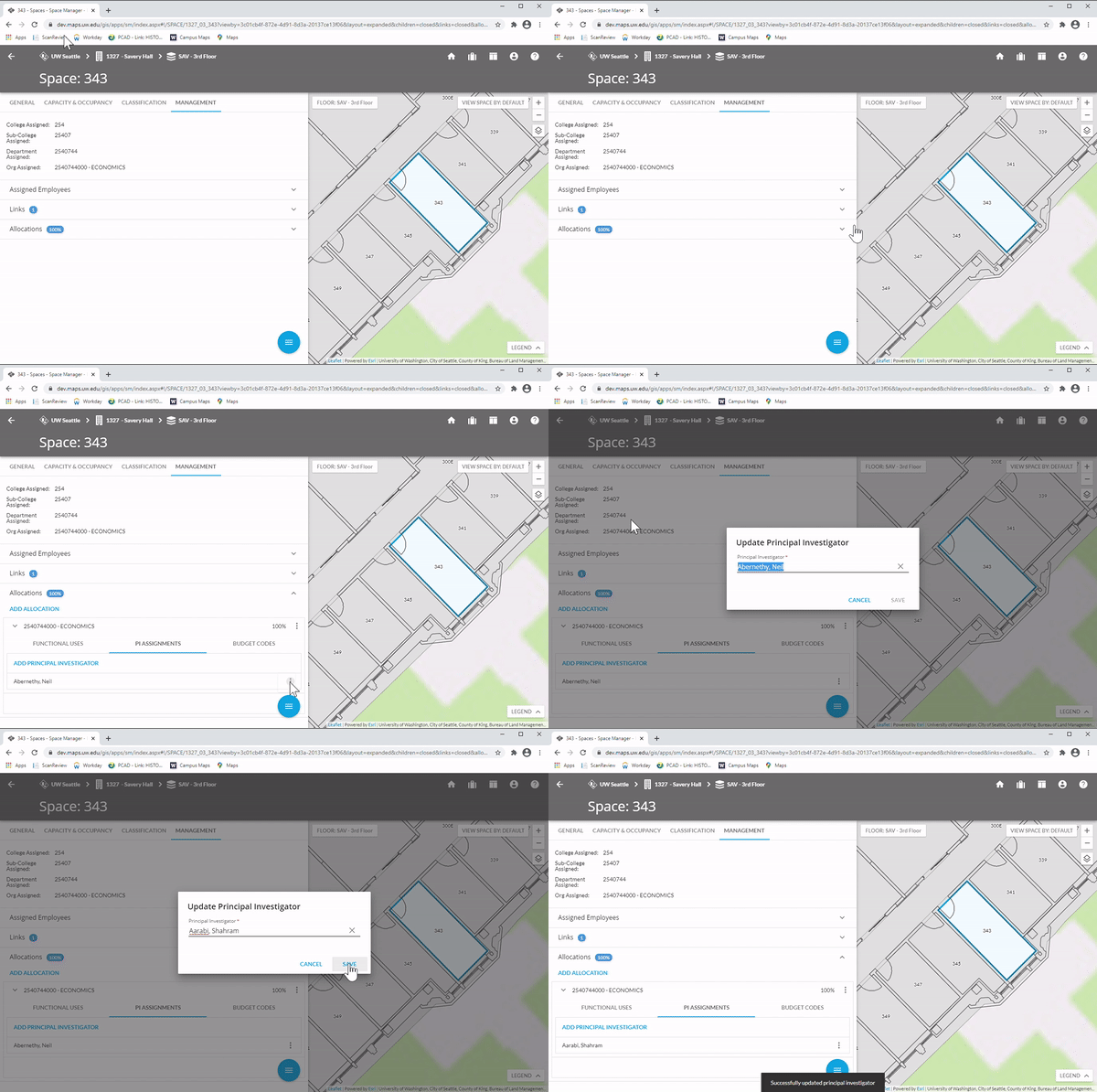
If there is more than one Principal Investigator in a Room, the investigator needs to be allocated by organization.
Set the proper allocations per organization. Note that any allocations for a room more or less than 100% will display as gold; allocations that equal 100% are shown as blue
After all allocations and Principal Investigators have been set, go to the Links menu above Allocations and click on it. This will open up the Links menu, including "PI%."
Clicking on PI% will open a new tab, which will include another Allocations menu, broken down by Organization. Click on each organization to allocate the desired allocation for that principal investigator, and save.
Add a budget allocation
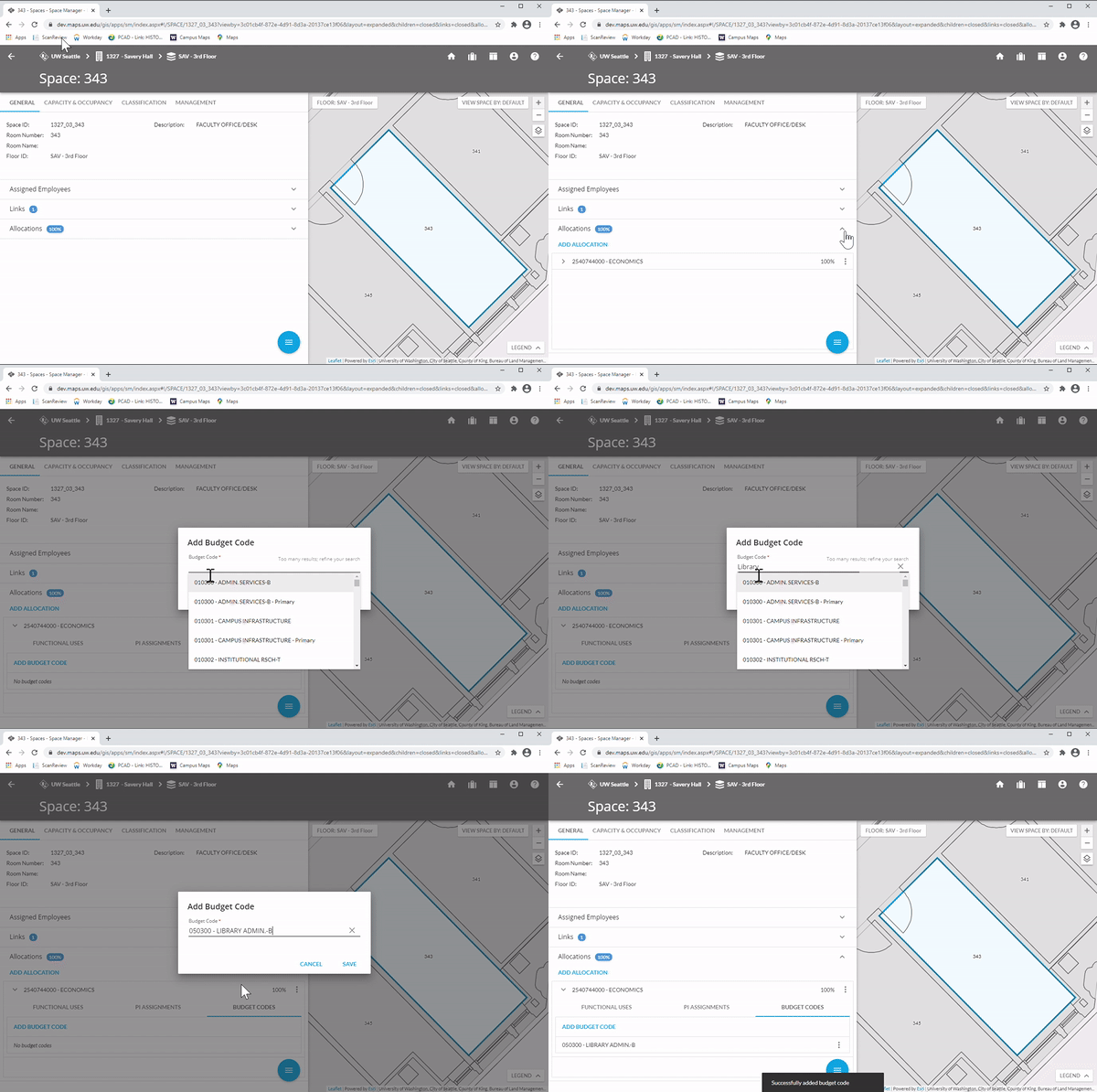
Once a room is selected, expand the Allocations menu.
Open the desired Allocation, and click on "Budget Codes", then click on "Add Budget Code" to create an edit window. Enter a valid budget code, name, or use the dropdown menu and click Save.
Add a primary budget allocation
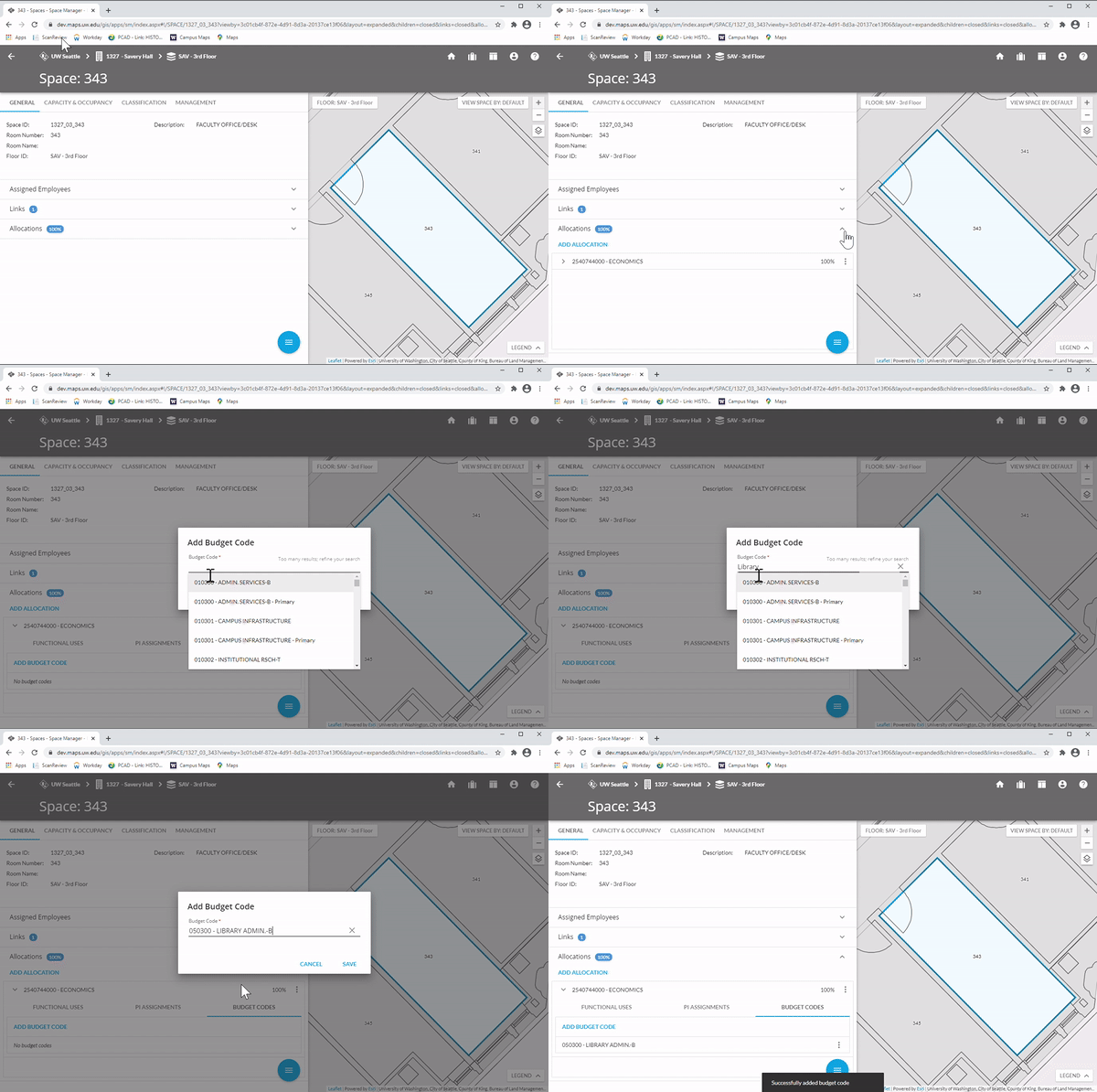
Some rooms need to be listed as a Primary for a budget.
The process is identical to assigning any other budget code.
Open the desired Allocation, and click on "Budget Codes". Then click on "Add Budget Code" to create an edit window. Enter a valid budget code, name, or use the dropdown menu, ensure the Budget is listed as a Primary, and click Save.
Remove a budget allocation
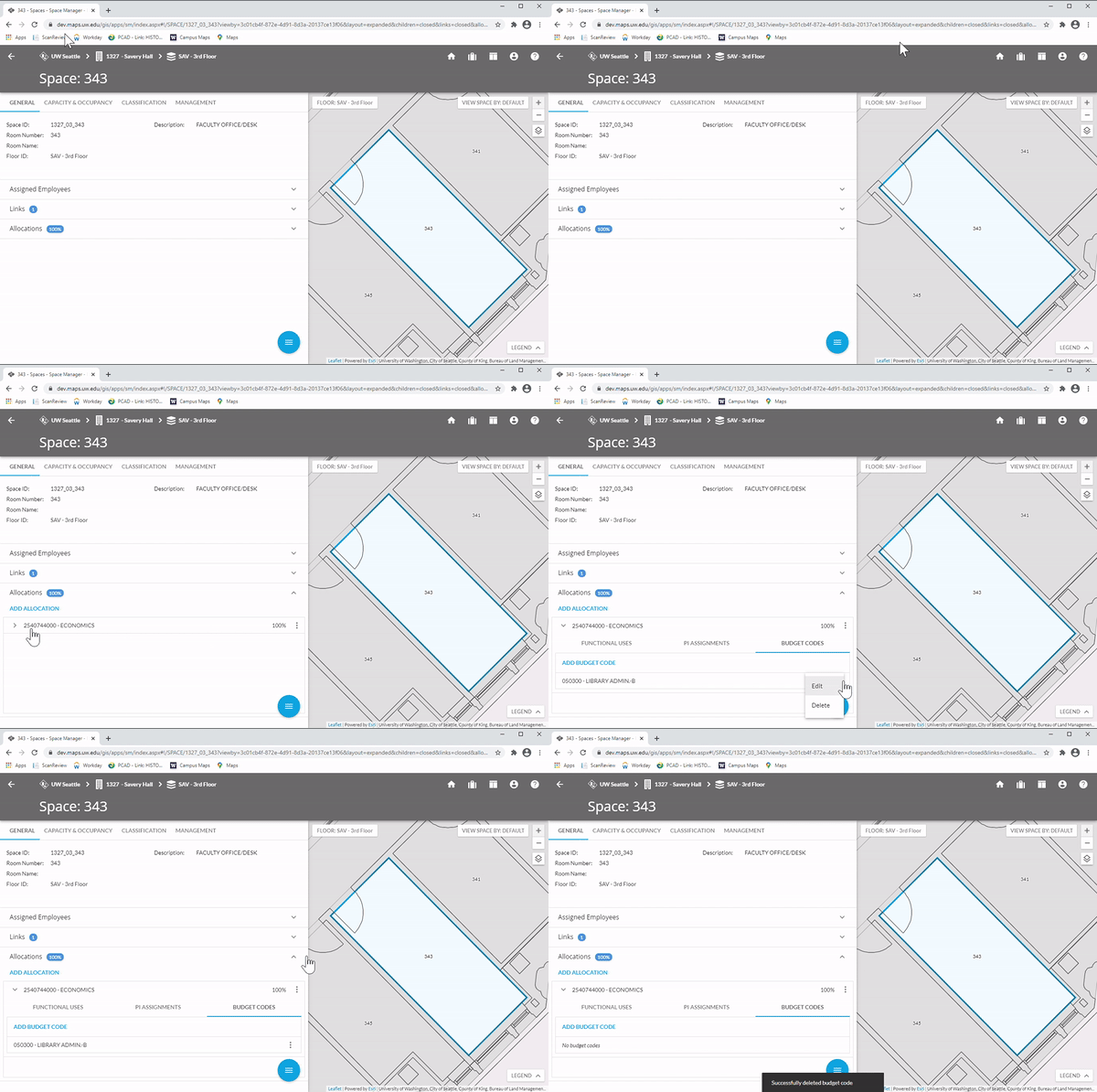
To remove a budget allocation, open Add Allocation, click on the budget item's ellipsis under "Add Budget Code," and then "Delete." The user is required to confirm, and the Budget Code is deleted.
Videos
Space Manager training (March 26, 2021)
PDFs
- Space Manager training slides (PDF) - slide deck from Space Manager training session March 26, 2021
- Budget Room Assignment tool (PDF) - getting started guide for searching, editing, adding and deleting InVision budget room assignments